
Quick answer
Help you turn your phone screen off (lock screen) without using power button.
F-Droid repository metadata
Pineapple Lock Screen (OSS version) is a small, simple, clean, and fast application that helps you turn your phone screen off (lock screen) without using the physical power button. This could help you increase the life of your physical power button, just in case your power physical button is near broken.
This application makes use of the Android accessibility feature so it doesn't require root privilege to work. Alternatively, A Shizuku-based mode is also available for those who cannot use the accessibility feature.
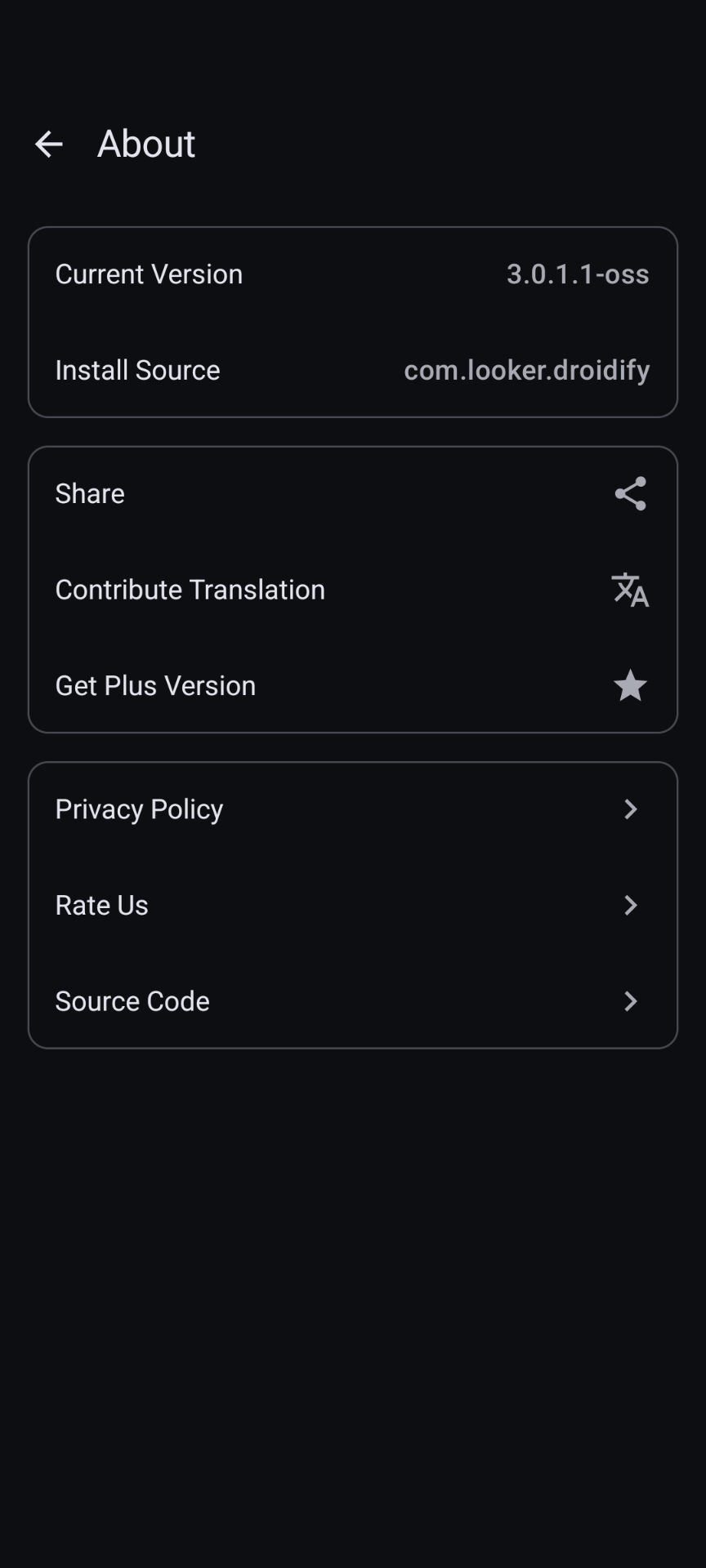
Pineapple Lock Screen (OSS version) is the Open Source Software version of the Pineapple Lock Screen app. It has the identical functionality as the paid version (Plus version) on the store. If you do think this app is helpful, you can buy the plus version to show your support at: https://link.blumia.net/lockscreenplus-playstore
FEATURES
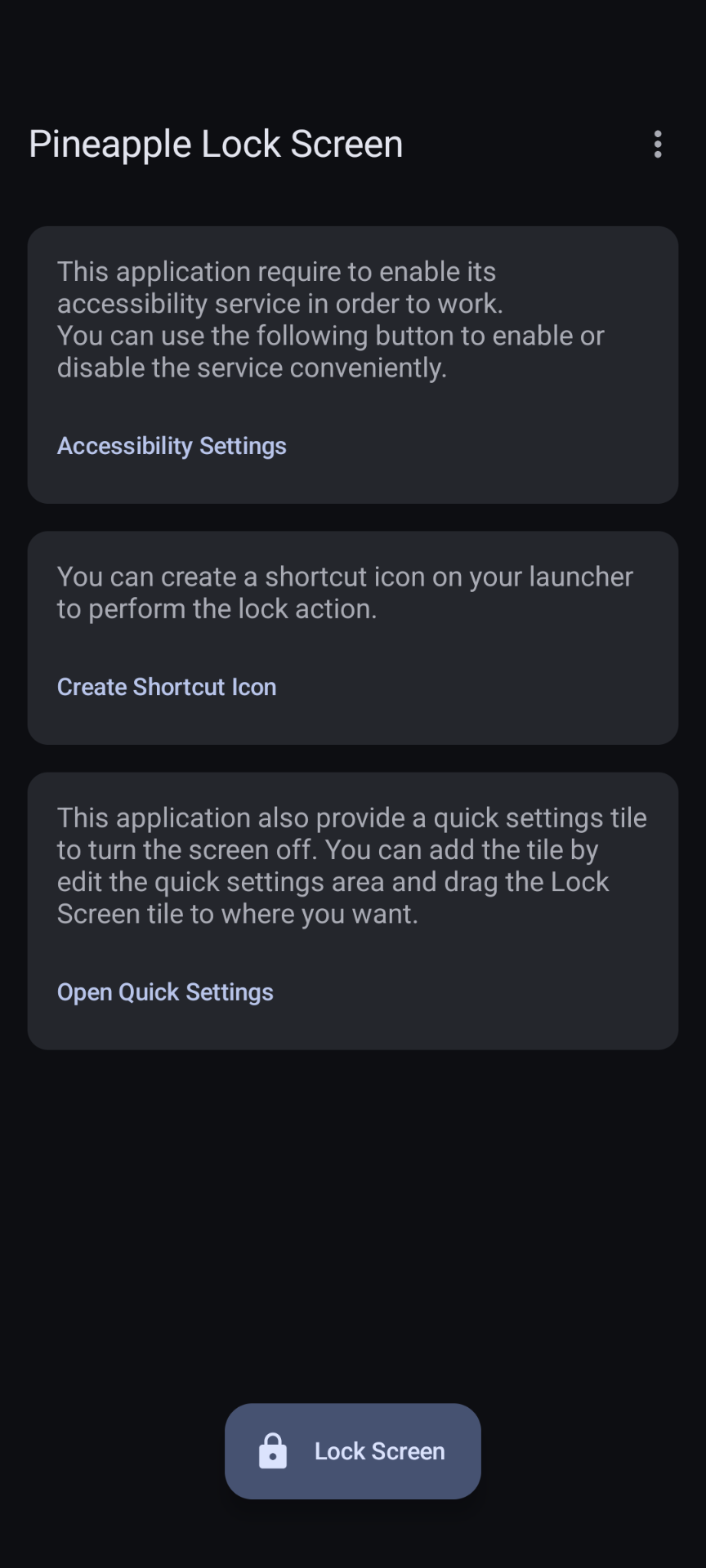
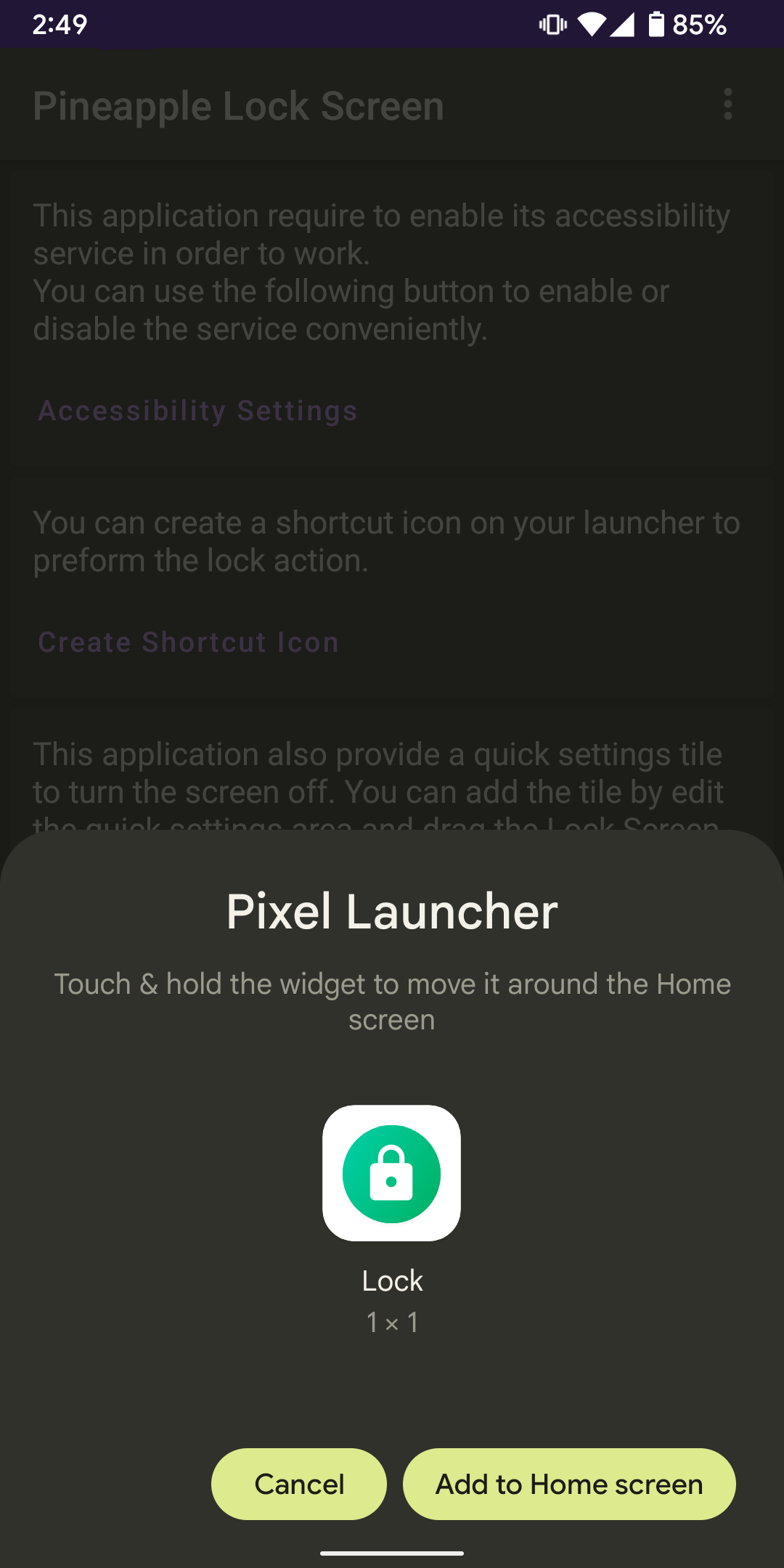
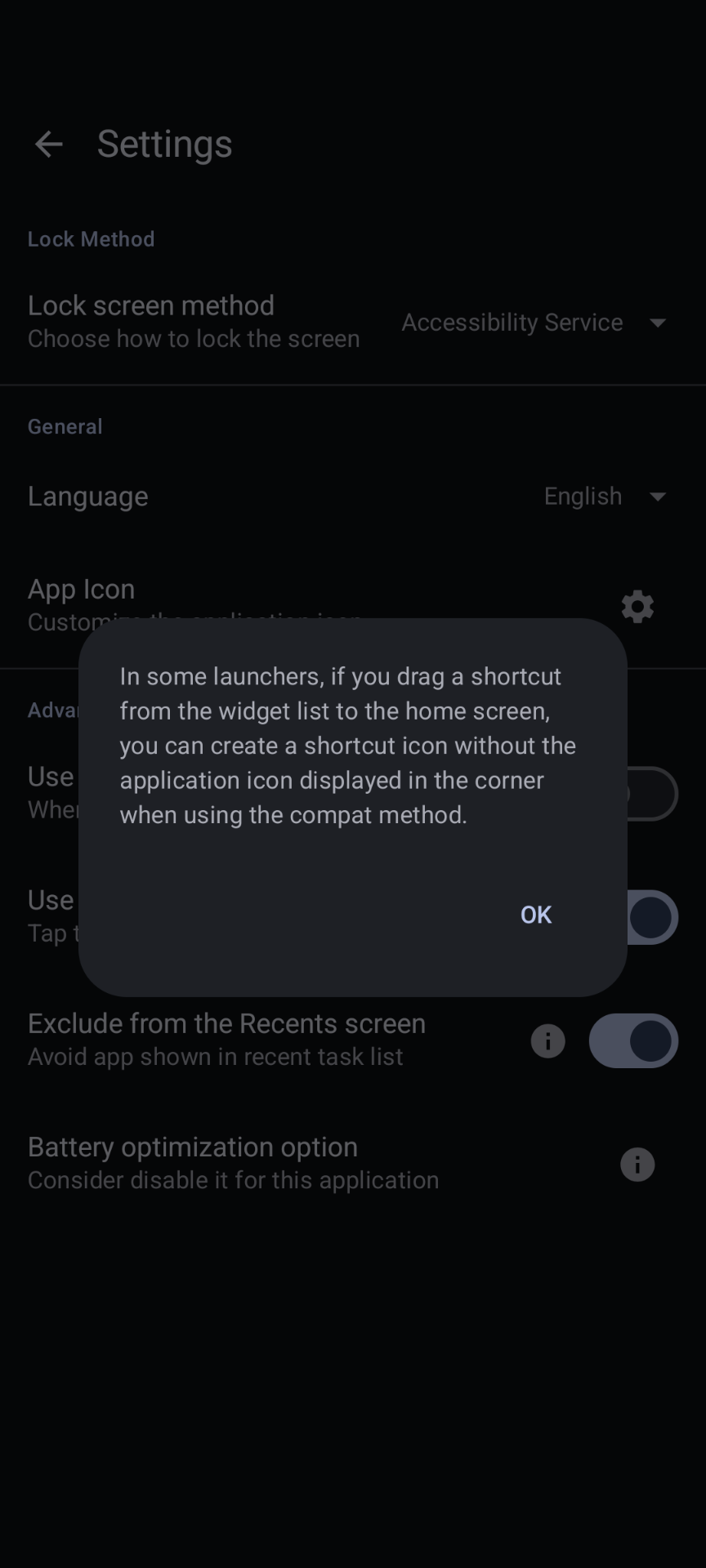
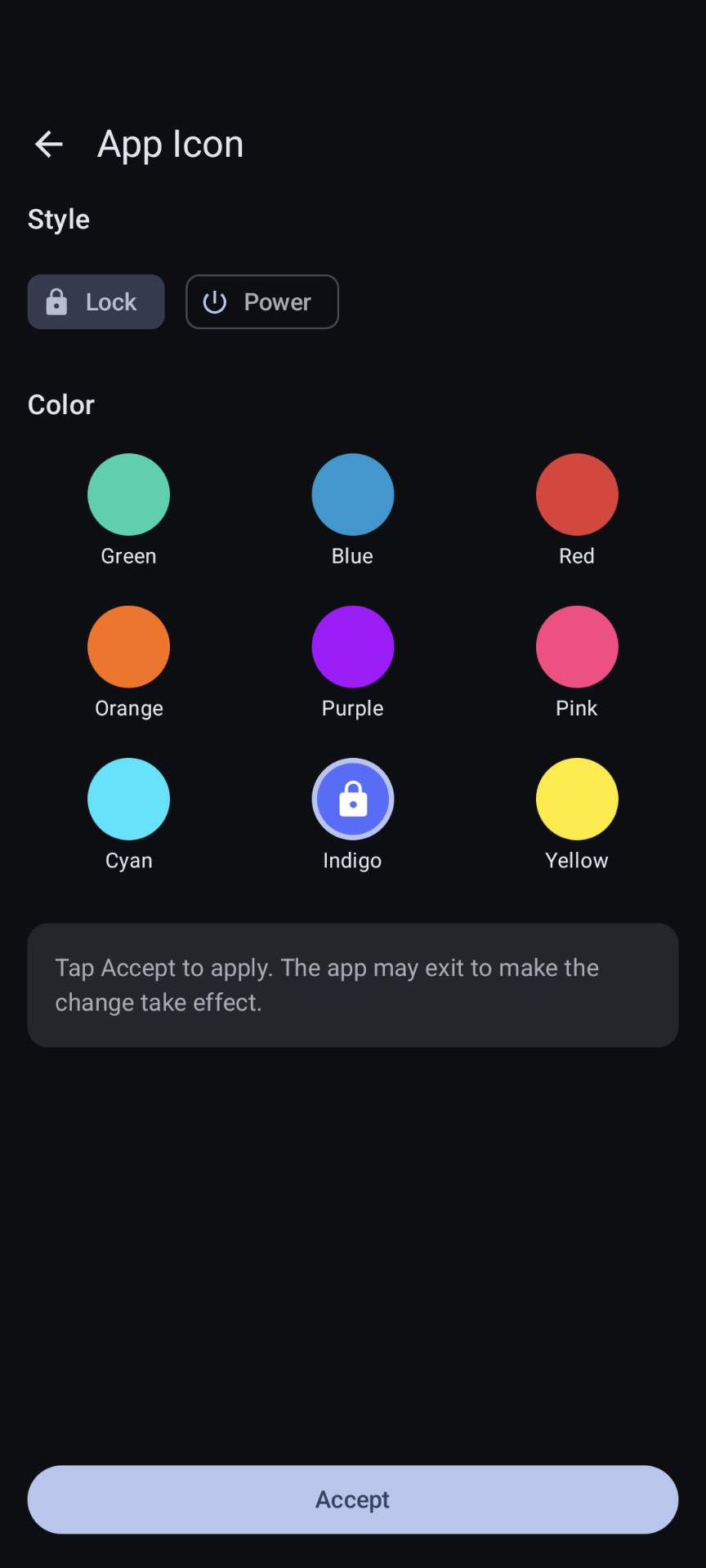
✓ One tap to lock the screen ✓ You can create a shortcut to lock the screen without opening the application ✓ Create shortcut without the app icon in the corner* ✓ Add Quick Settings tile to turn off the screen ✓ Follow system color theme (light/dark) ✓ Doesn't require root ✓ No AD
USAGE
Once installed, you need to enable its associated accessibility service to work. Just follow the in-application description and nothing more than that**.
Please note that every time you reboot or for any other reason the application is force stopped, you need to re-enable the accessibility service.
You can also create a shortcut on your launcher and/or add a Quick Settings tile to turn the screen off without entering the application, it's not required and you can also remove the shortcut when you no longer need it.
* This feature requires launcher support, tested under Pixel Launcher and Microsoft Launcher. Behavior can be toggled in the Settings screen of this app. ** Since Android 13, side-loaded package need user manually allow restricted settings before using the accessibility feature. You can learn more about it at https://support.google.com/android/answer/12623953 .
Screenshots
How to install
- Download the APK from the button at the top of this page.
- Allow “Install unknown apps” for your browser or file manager only, not for every app.
- Open the downloaded file and confirm the installation.
- If installation fails with “App not installed,” remove an earlier build of the same app first. A signature conflict is the usual cause.
Data safety
- Every file is checked against its published SHA-256 before it is listed.
- Files are scanned for malware on every update.
- The permissions each app requests are listed on its own page.
- Read the full safety policy for how we test, flag, and delist files.
Comments
Recent approved comments · sorted by newest
View all comments