
Quick answer
Useful text related functions that can be done on the selected text
F-Droid repository metadata
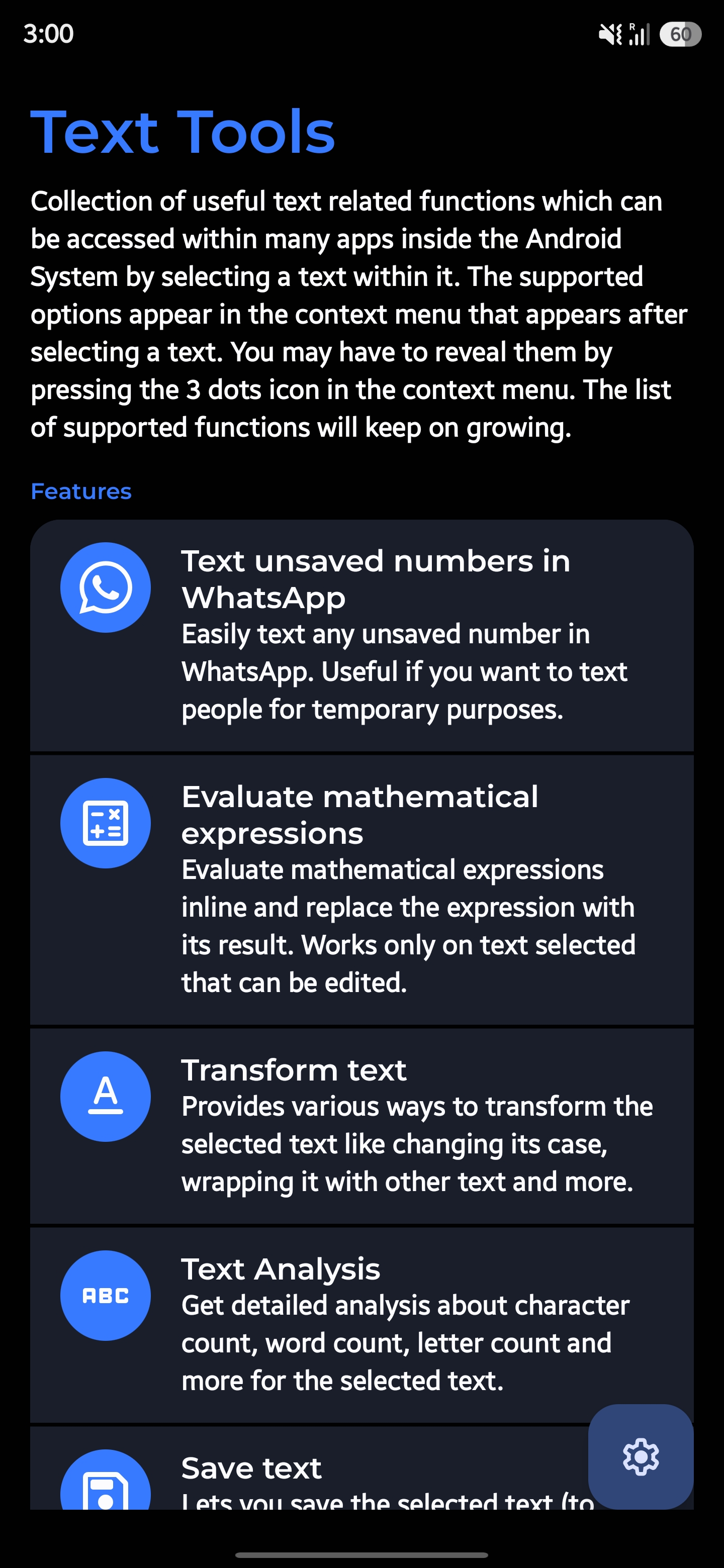
Collection of useful text related tools that can be accessed from the context menu that appears on text selection. The feature list will keep on growing. Let me know if you have any ideas.
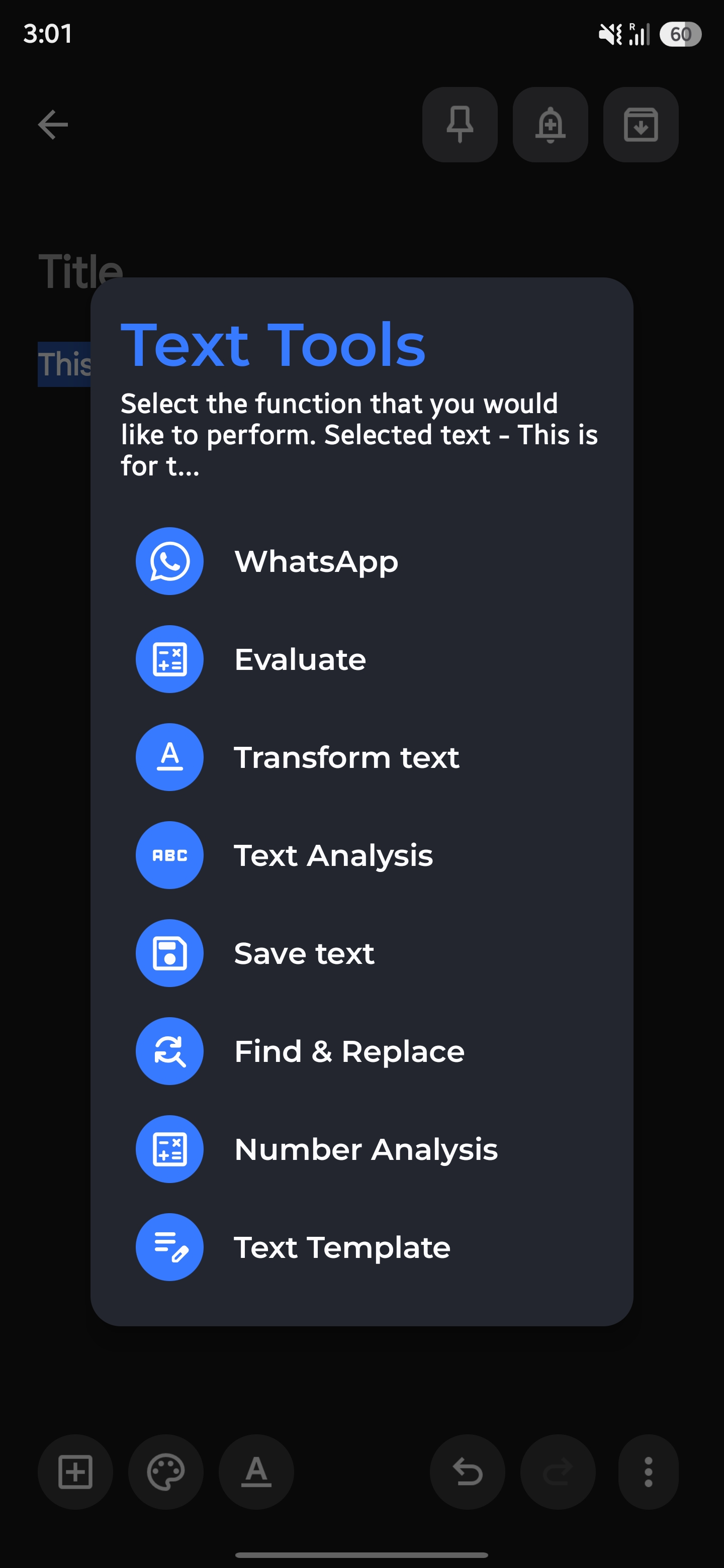
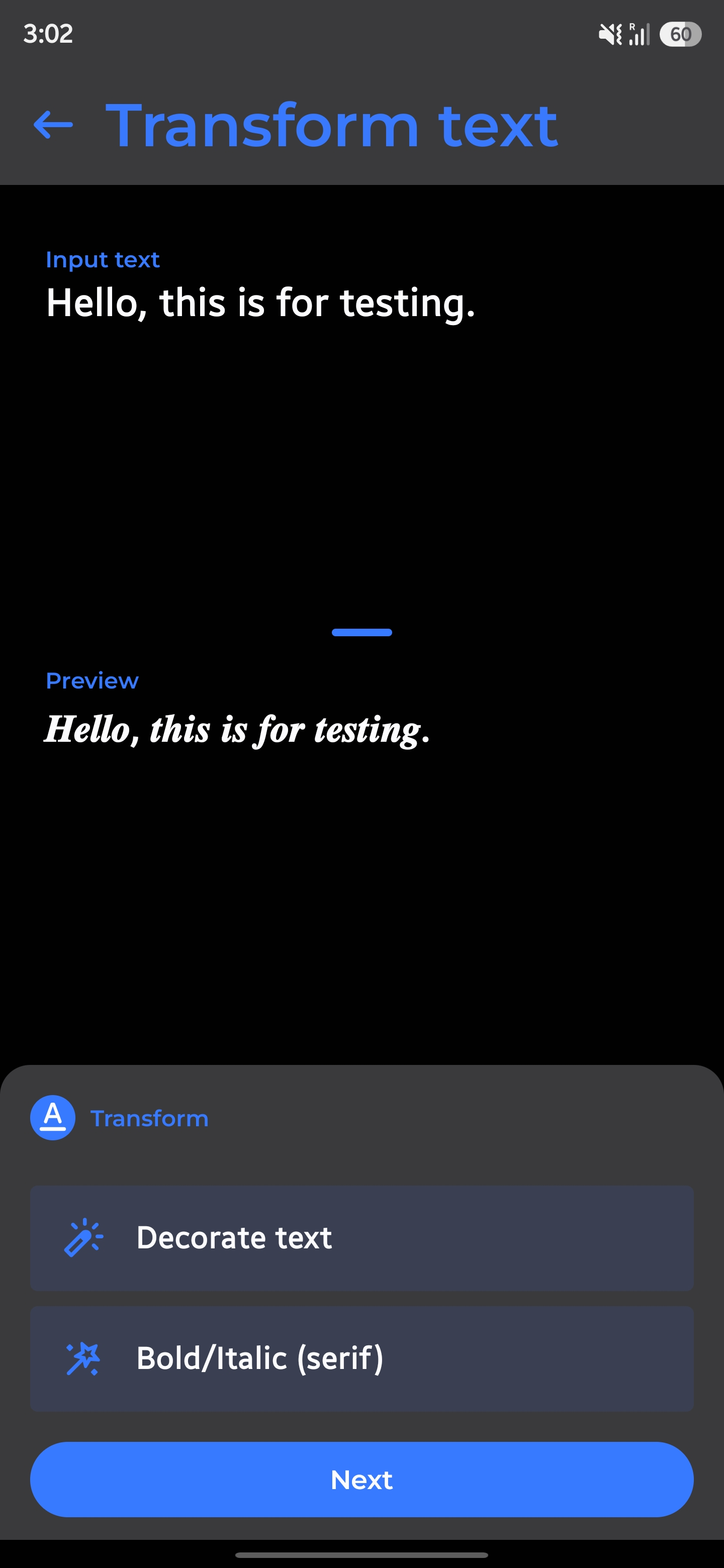
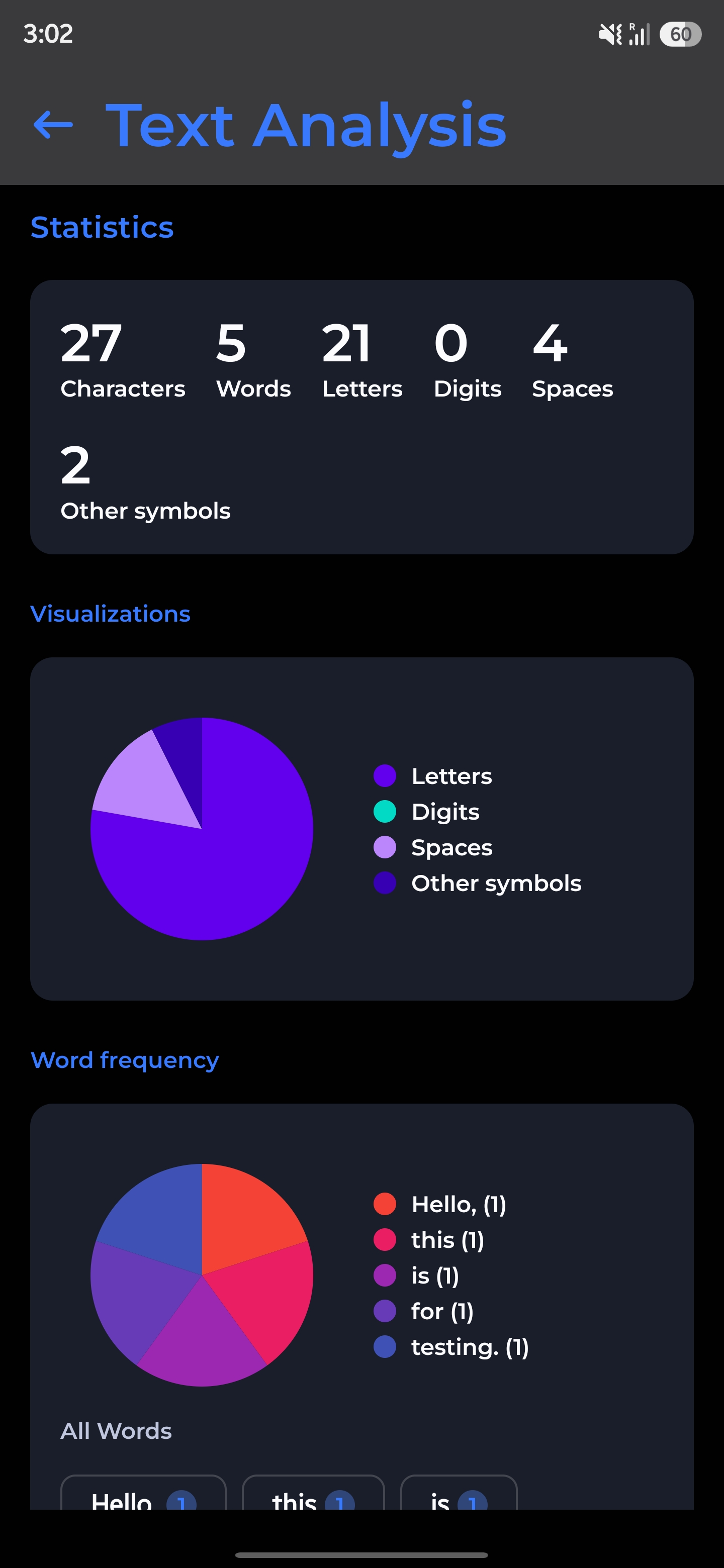
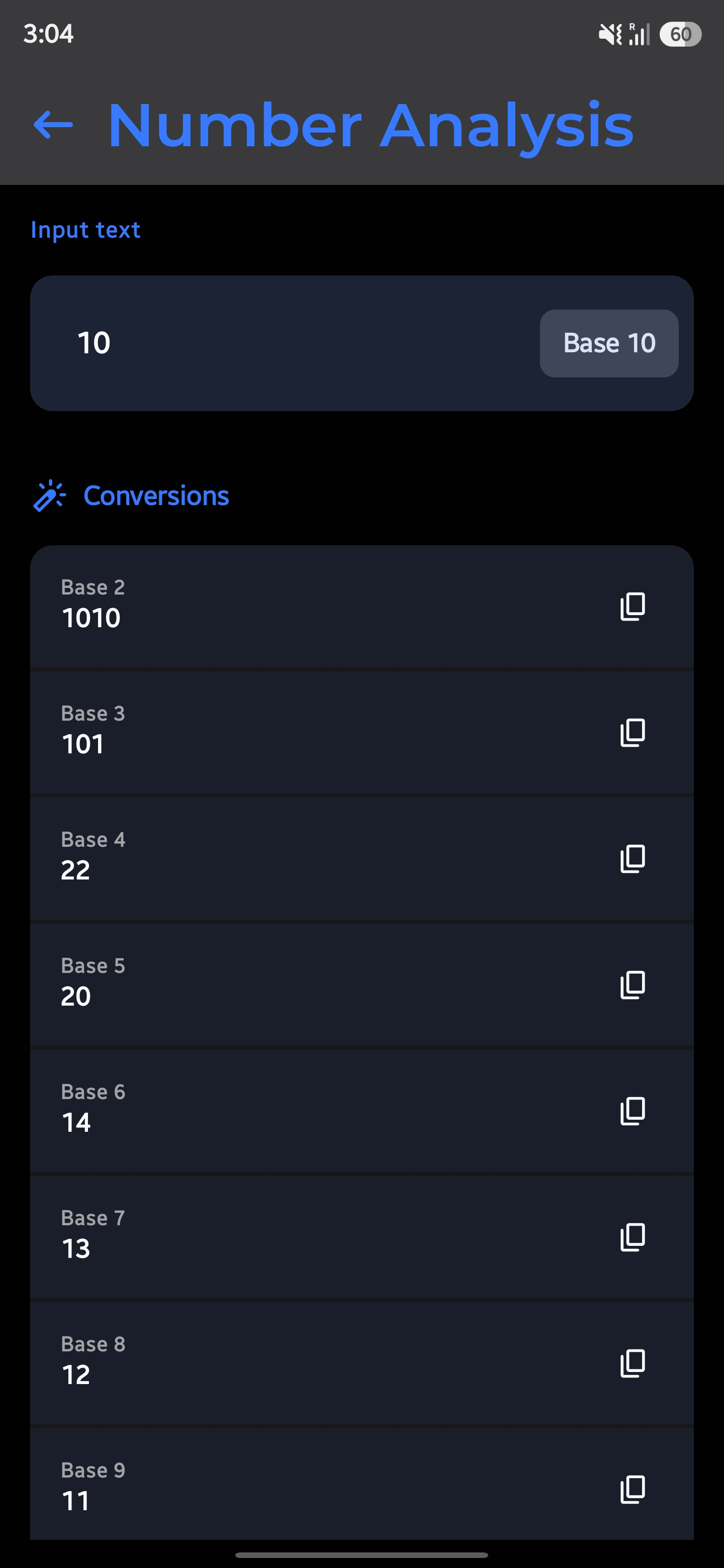
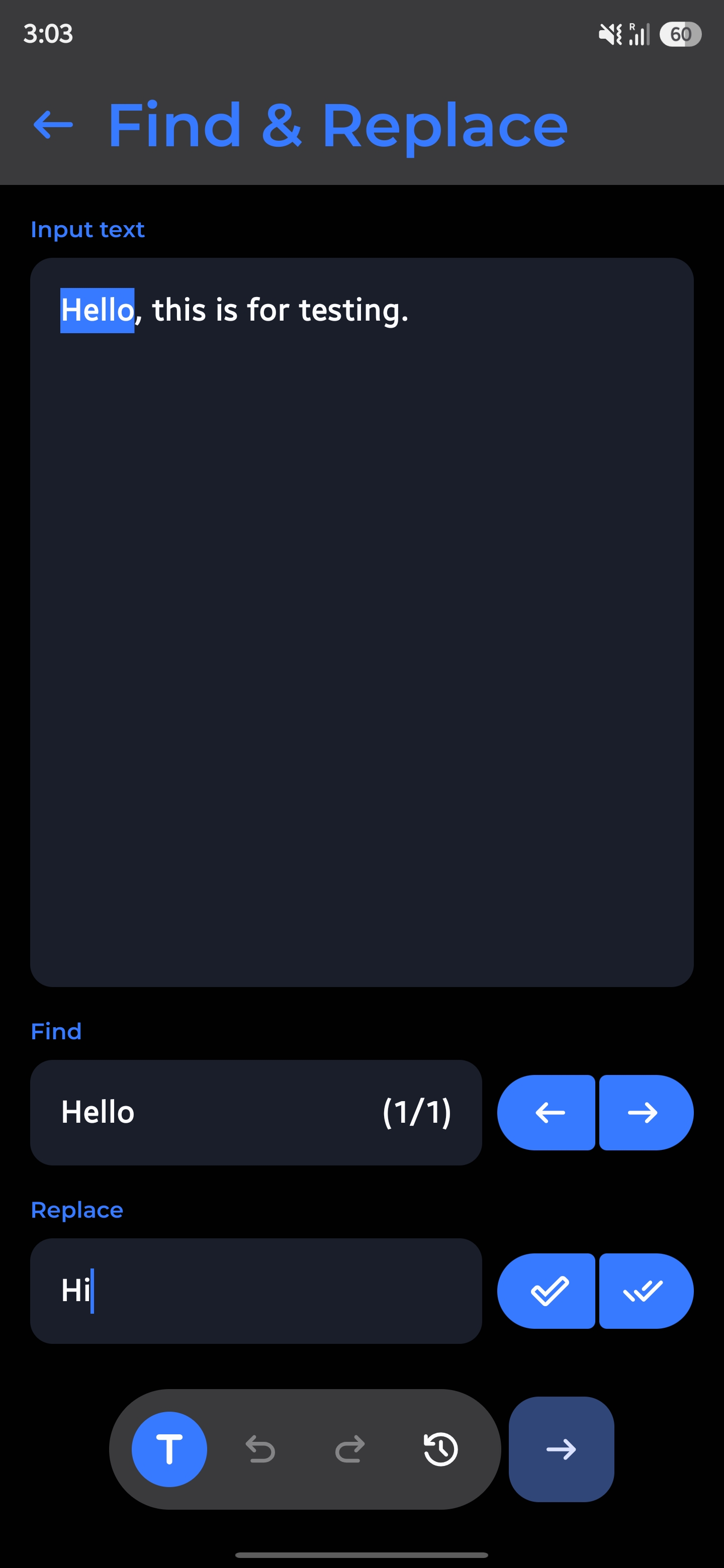
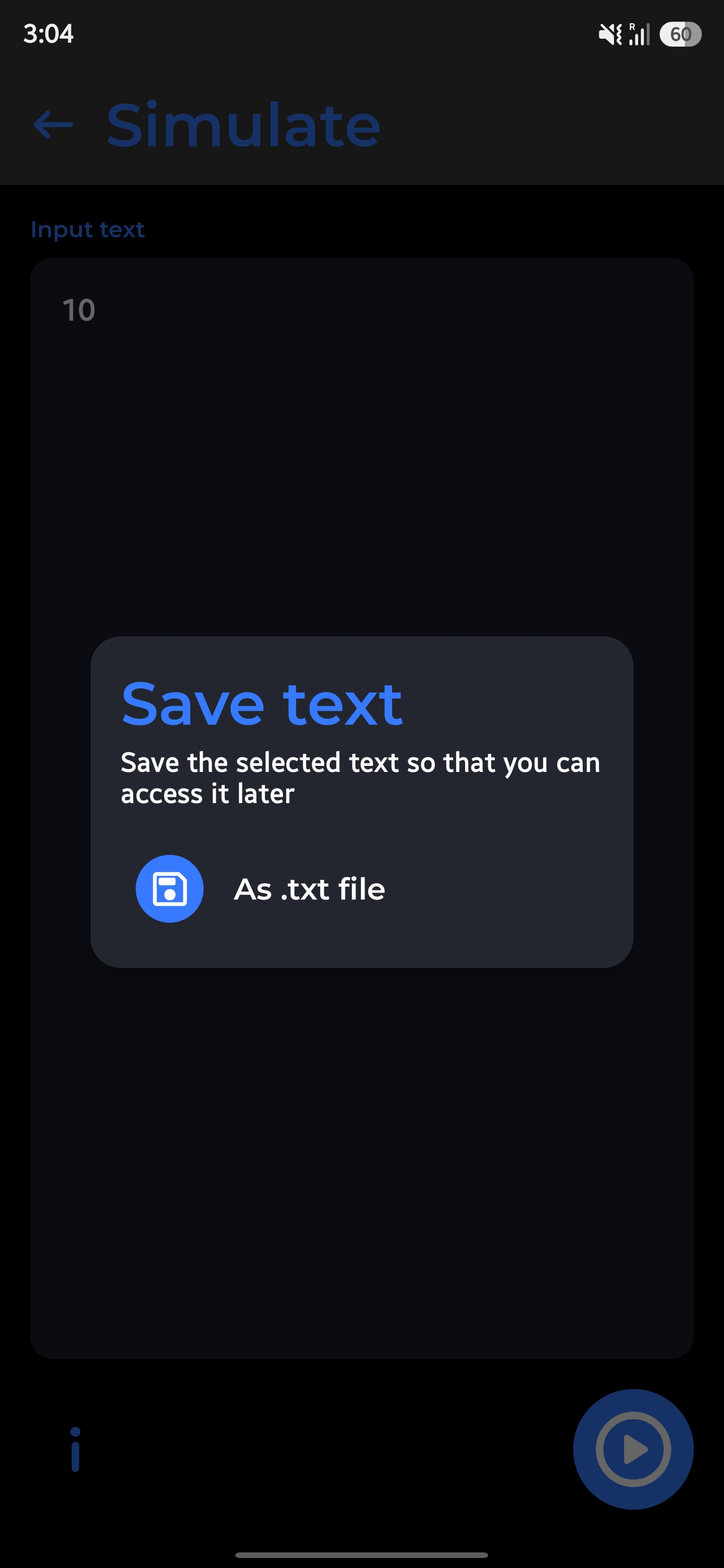
Current Features 1. Text unsaved numbers in WhatsApp - Often we find ourselves needing to text/send file/share location to someone for temporary purposes (if you ask me, I face this a lot in situations where I go to a printing centre where they ask me to share the file that I want to print over WhatsApp, so I have to save their contact, refresh my WhatsApp contact list and then send them). Having a context menu option to directly open a WhatsApp chat from their phone number would save a lot of time and keep your phonebook clean, right? 2. Evaluate mathematical expressions inline - We may often find ourselves to mathematically calculate something while texting someone (probably while making plans). Having an option to perform math calculations in line without needing to open calculator could save time. 3. Transform text - Transform the selected text inline. Supported transformations include changing the case, wrapping it with text etc. 4. Text analysis - Get detailed analysis about character count, word count, letter count and more for the selected text. 5. Save text to a file - Lets you save the selected text into a file so that it can be accessed later. 6. Find & Replace - Quickly find certain text and replace them with text of your choice within the selected text. 7. Number Analysis -Analyze numbers, convert them to different bases, find factors, prime information, and more. 8. Text Templates - Create and apply custom text templates with your selected text as a parameter. 9. Actions - Process the text directly with supported system functions.
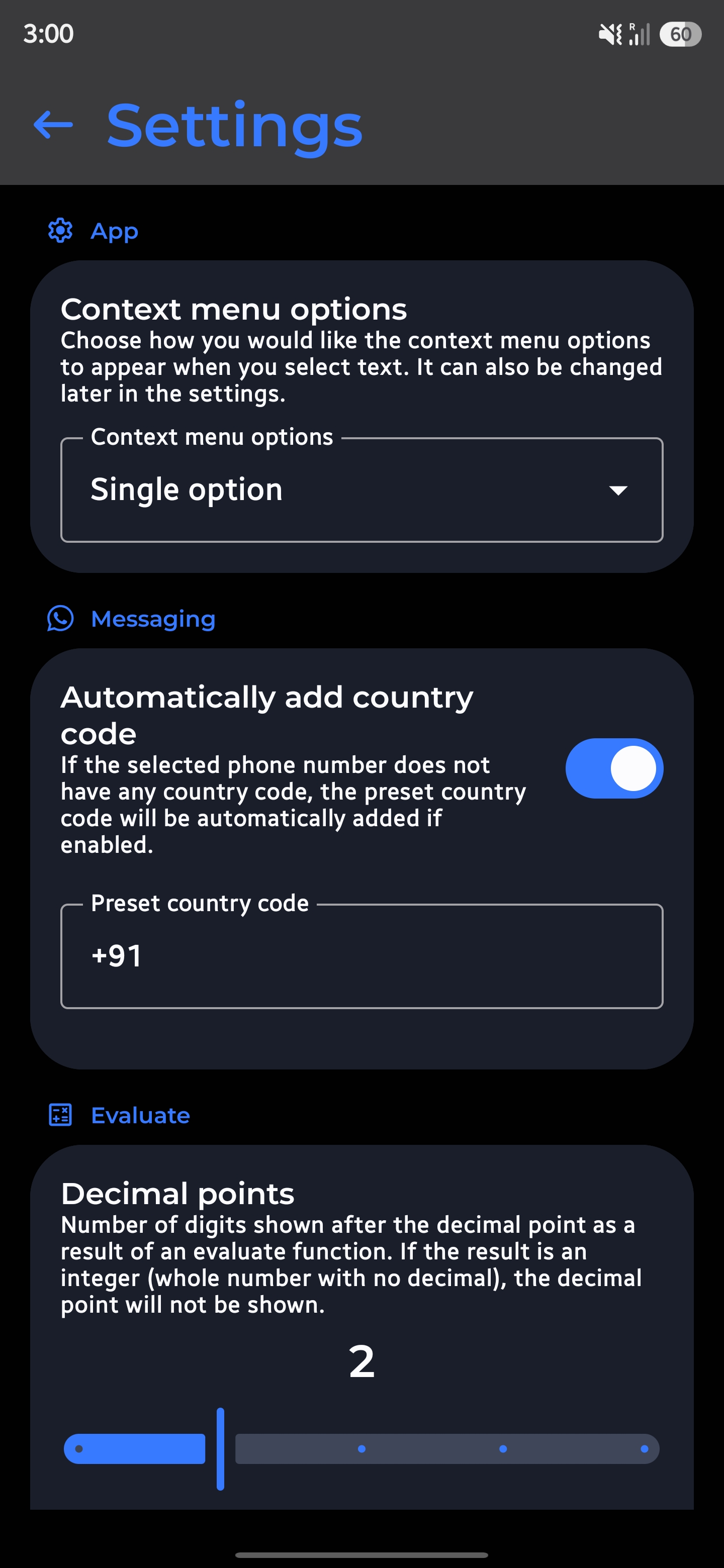
Where are screenshots? The app adds capabilities to text selection wherever supported in the Android System, there is nothing much to do inside the app, hence very less screenshots.
Installation Warning While installing the app (you have to sideload), Google Play may block the installation saying it has never seen the app before. While it is true (from Google Play POV), kindly proceed with installing the app. If you have doubts about the app being malicious, you are free to verify the same from the source code (it would not be open-source if the app was malicious in the first place, right?).
Screenshots
How to install
- Download the APK from the button at the top of this page.
- Allow “Install unknown apps” for your browser or file manager only, not for every app.
- Open the downloaded file and confirm the installation.
- If installation fails with “App not installed,” remove an earlier build of the same app first. A signature conflict is the usual cause.
Data safety
- Every file is checked against its published SHA-256 before it is listed.
- Files are scanned for malware on every update.
- The permissions each app requests are listed on its own page.
- Read the full safety policy for how we test, flag, and delist files.
Comments
Recent approved comments · sorted by newest
View all comments