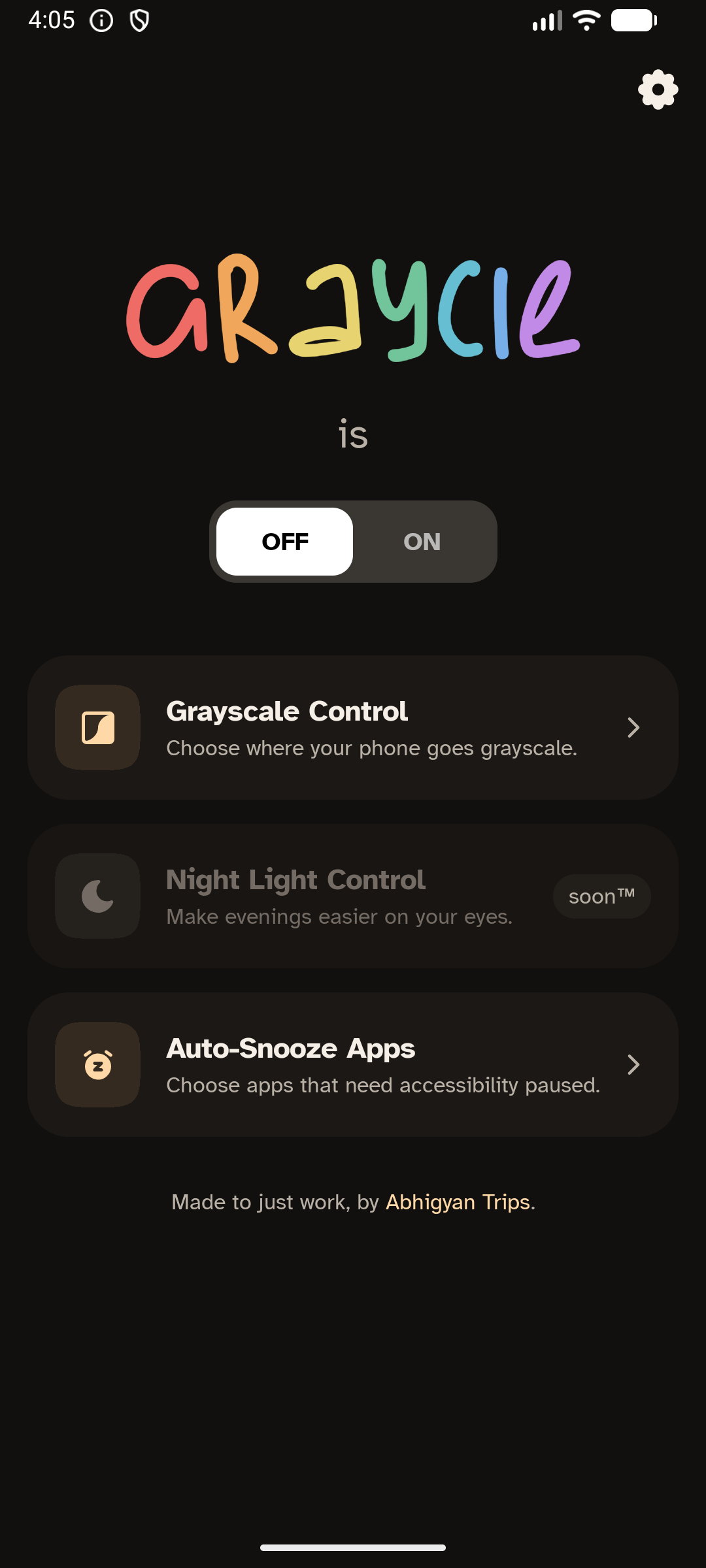
Graycie automatically switches Android's grayscale color correction according
to the app currently in the foreground.
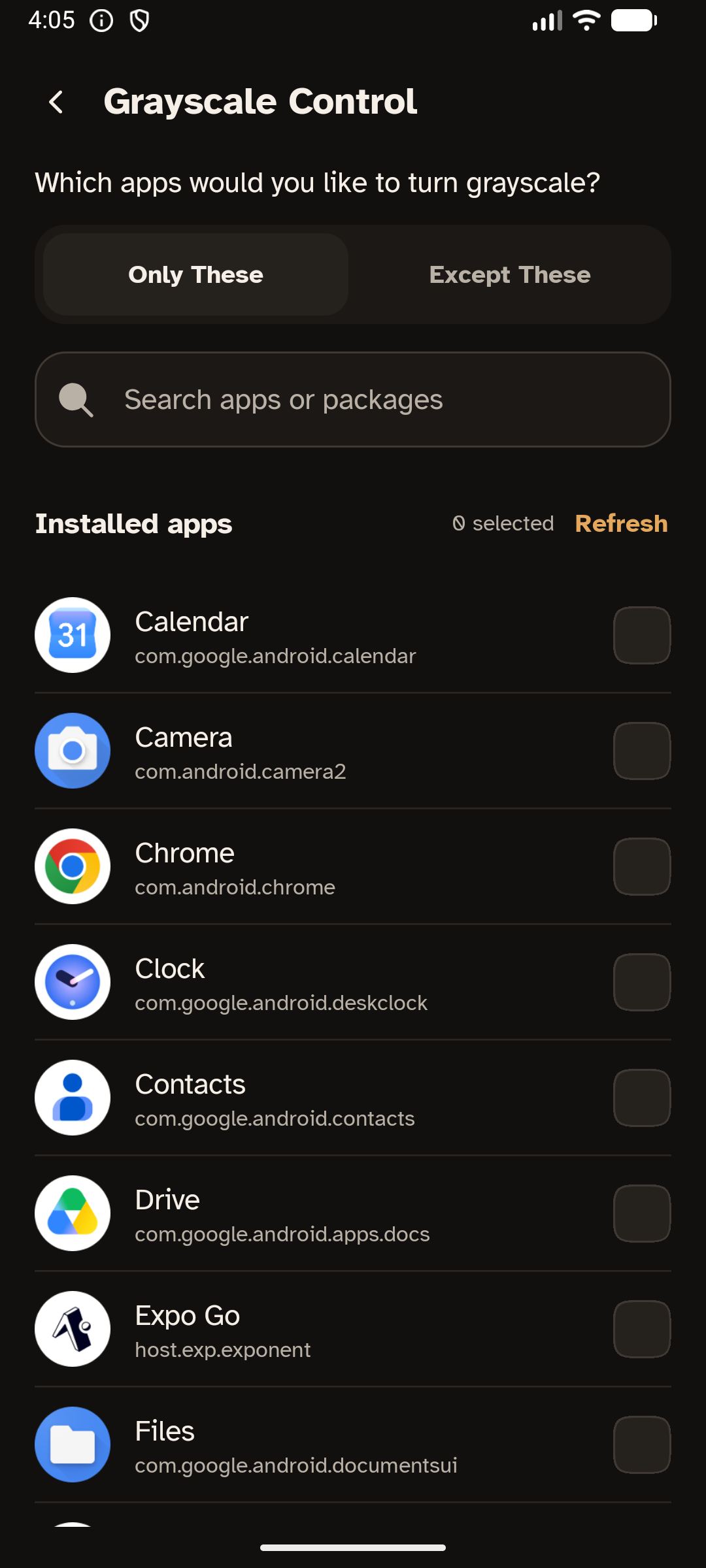
Choose one of two policies:
• Only selected apps: selected apps are grayscale; everything else stays in color.
• Except selected apps: selected apps stay in color; everything else is grayscale.
Color apps keep your saved correction for color blindness and its on/off state.
If your saved correction is grayscale, color apps turn correction off instead.
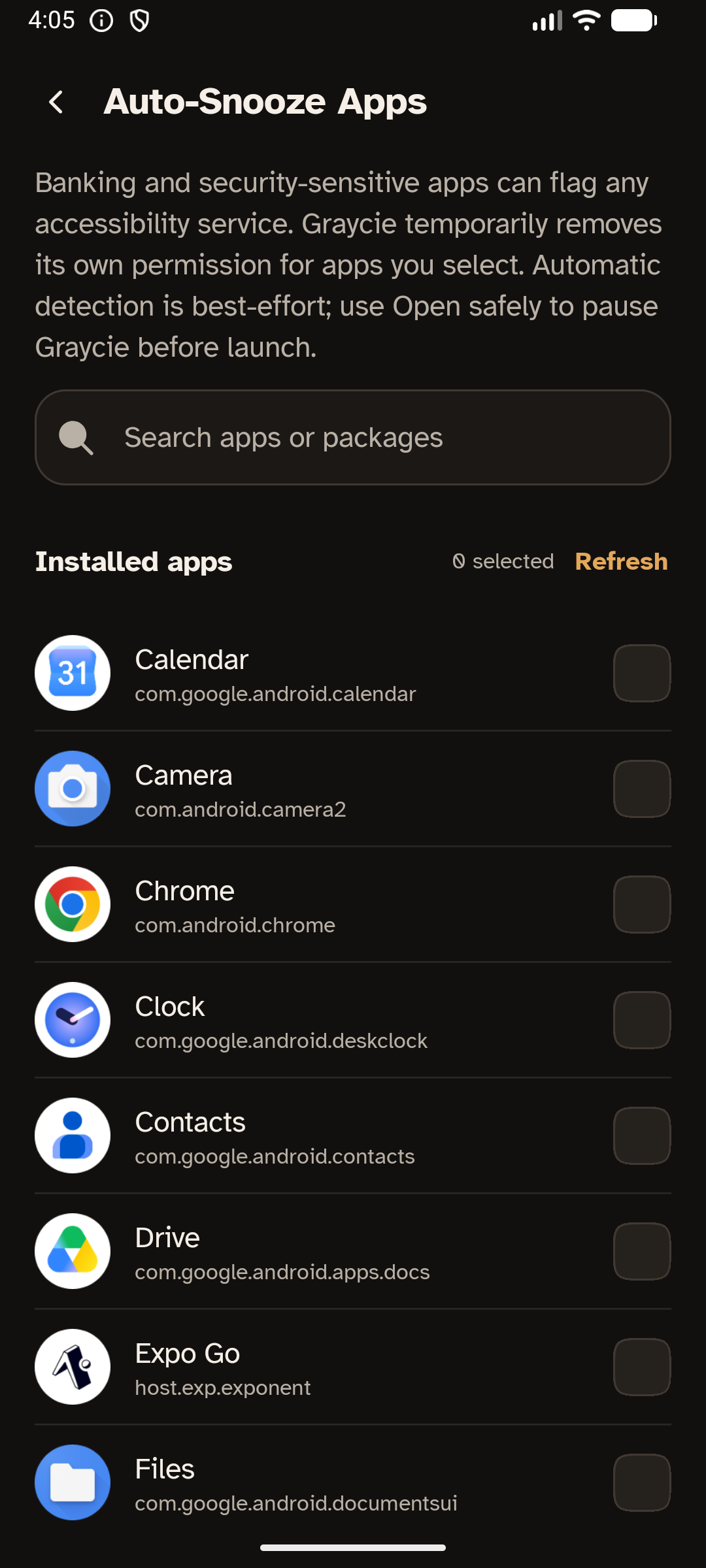
Graycie also includes optional auto-snooze support for banking and other
security-sensitive apps that refuse to run while an accessibility service is
enabled. “Open safely” disables Graycie's accessibility service before opening
one of these apps. You remain in control of when the service resumes.
Important setup and privacy details:
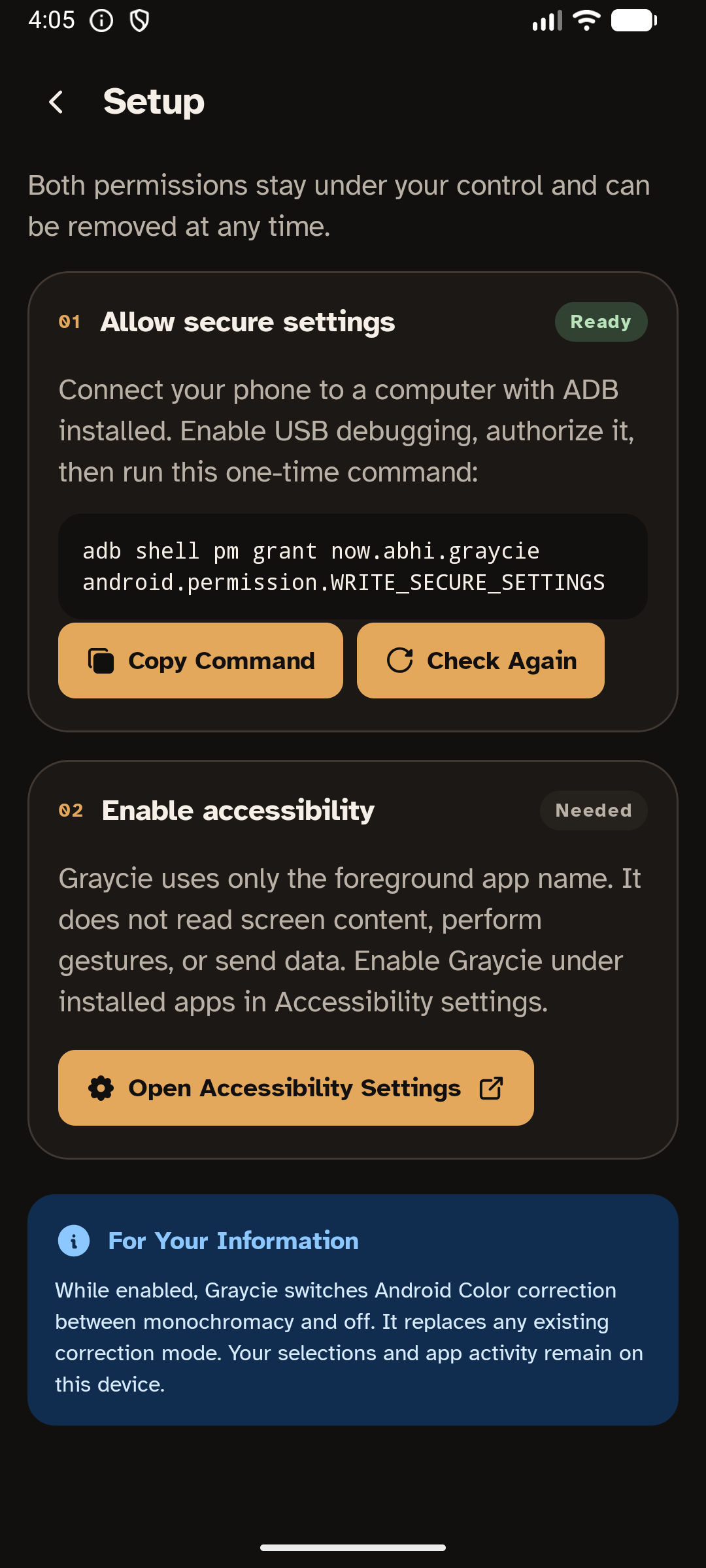
• Graycie uses an accessibility service solely to identify the foreground app.
It does not read screen text, inspect window content, perform gestures, or
collect what you type.
• Graycie reads the installed-app catalog so you can select apps for grayscale
and auto-snooze policies.
• A one-time ADB command must grant WRITE_SECURE_SETTINGS. This lets Graycie
control Android's color-correction setting and restore its own accessibility
service after a snooze. The permission cannot be granted from within the app.
• Foreground-app detection, policy decisions, settings, and app lists remain
entirely on your device. Graycie has no network permission, analytics,
account, ads, cloud service, or telemetry.
• An ongoing local notification is shown while accessibility is snoozed so you
can return to Graycie and resume it.
• While management is on, Graycie temporarily overrides Android Color
correction. It saves the previous mode and on/off state and restores them
when management stops or snoozes. A newer manual correction is kept.
While management is on, Graycie keeps its own interface in color. Home and
launcher-hosted Overview remain grayscale, and the current Home app cannot
be selected.
Before uninstalling, turn Graycie OFF to restore your previous Color correction.
If the screen stays grayscale after uninstalling, open Android Settings →
Accessibility → Color correction and turn Color correction OFF. If you use
correction for color blindness, select your preferred mode there instead.
If you cannot find this setting, search Android Settings for “Color correction”.