Add support for downgrading apps on Android 12 through 17.
F-Droid repository metadata
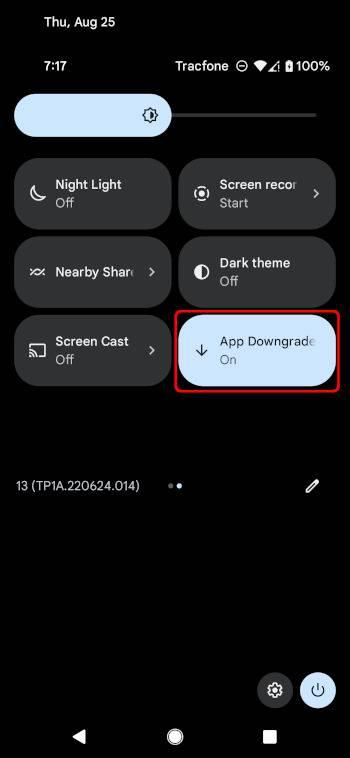
Android's app installation system does not allow users to downgrade to an older version of an app when they already have a newer version installed. Let Me Downgrade is an Xposed module for Android 12 through 17 that enables users to bypass this restriction. The app provides a Status screen with a switch to allow or block downgrades at any time. You can also add an optional App Downgrades Quick Settings tile that mirrors the same on/off state for quicker access.
⚠️ WARNING: Let Me Downgrade is intended for rooted devices running Android 12 through 17 and requires Xposed. The required Xposed variant to use is LSPosed. Other Xposed variants will not work. Additionally, this module cannot be guaranteed to work on all devices. In the worst case, it can cause a bootloop. Use at your own risk.
To use Let Me Downgrade:
1. Install an LSPosed build with API 101 support. This requires your device to be rooted with Magisk or KernelSU.
2. Install Let Me Downgrade.
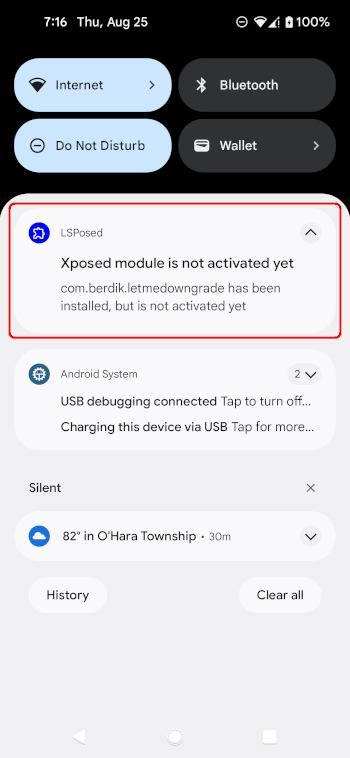
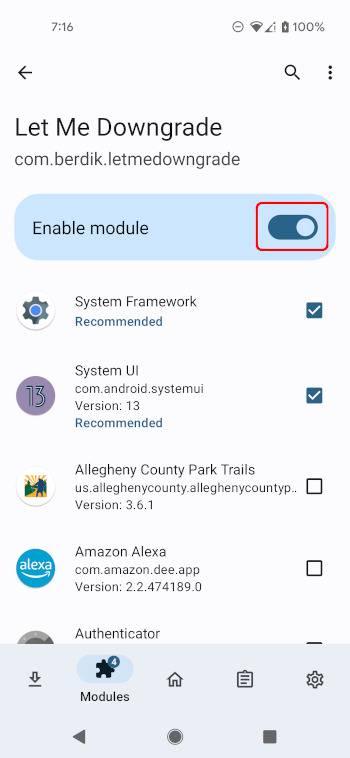
3. Activate the Let Me Downgrade module in the LSposed user interface.
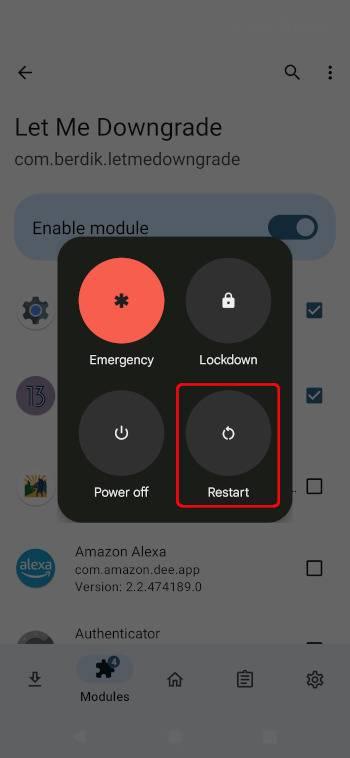
4. Reboot your device and sign in.
5. Open Let Me Downgrade from your launcher. When the module is active in LSPosed, the Status card shows whether app downgrades are allowed or blocked; use the switch to turn the hook on or off.
6. Optionally, add the App Downgrades Quick Settings tile from the tile editor. The tile mirrors the in-app switch.
Screenshots
What’s new
This release updates Let Me Downgrade to LSPosed API 101. An LSPosed build with API 101 support is required; this version is not compatible with API 100-only frameworks.
How to install
Download the APK from the button at the top of this page.
Allow “Install unknown apps” for your browser or file manager only, not for every app.
Open the downloaded file and confirm the installation.
If installation fails with “App not installed,” remove an earlier build of the same app first. A signature conflict is the usual cause.
Data safety
Every file is checked against its published SHA-256 before it is listed.
Files are scanned for malware on every update.
The permissions each app requests are listed on its own page.
Read the full safety policy for how we test, flag, and delist files.