What’s new
Fix per-day "advanced day" modes: a day set to Off or AllDay now actually takes effect. Previously the setting was ignored, so a weekend pause still powered the phone off inside the time window (e.g. Saturday 1am).

Updated Sep 22, 2026
Powers off your phone after inactivity, only inside a nightly kill zone.
F-Droid repository metadata
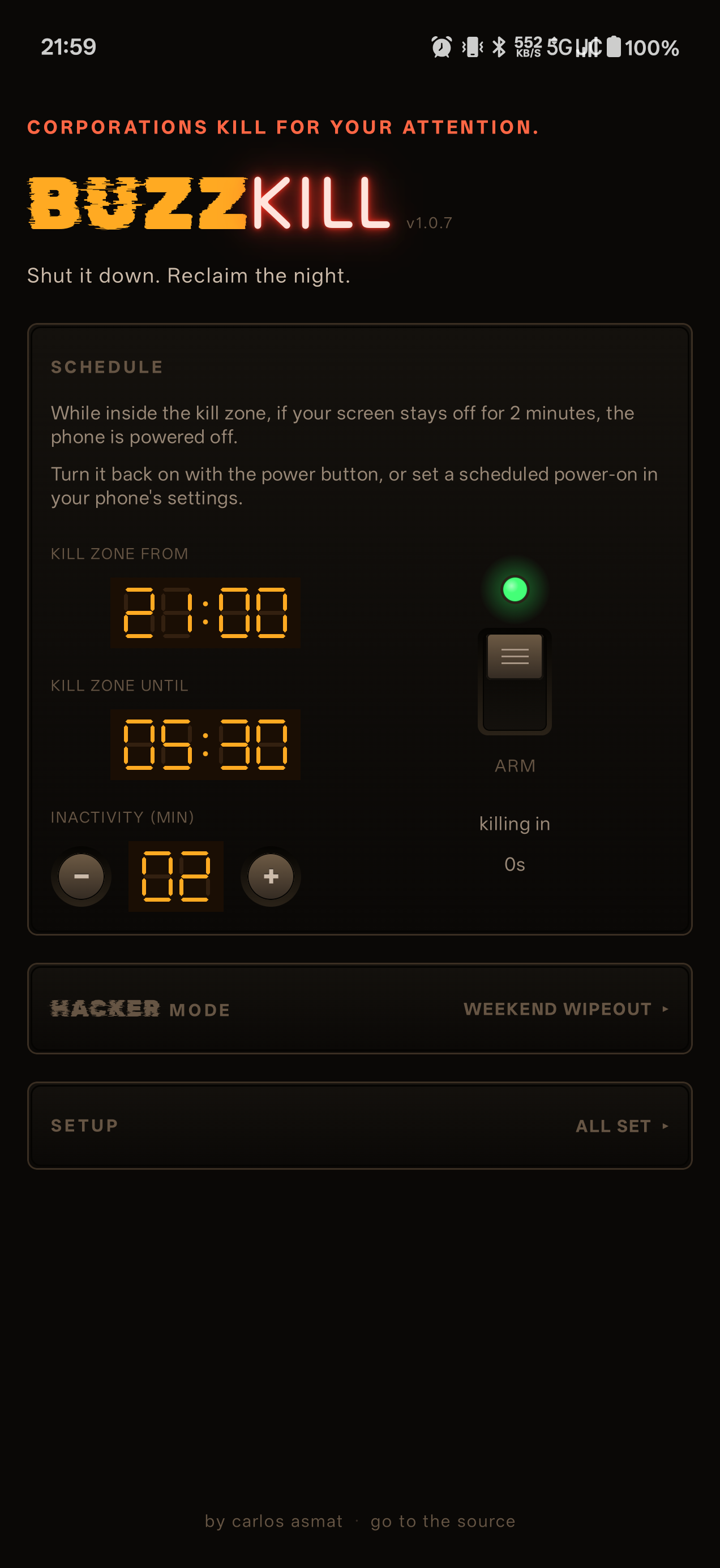
BuzzKill powers your phone off when you stop using it at night, so notifications and the temptation to scroll cannot wake you up at 2am.
You set a nightly kill zone (e.g. 23:00 to 07:00). Inside that window, BuzzKill watches for the screen to stay off for a configurable number of minutes, then triggers the system shutdown via an accessibility service. Outside the zone the app does nothing.
To come back on in the morning, use your phone's built-in scheduled power-on (e.g. on OnePlus: Settings, Additional settings, Scheduled power on/off). BuzzKill cannot enable this for you, so an onboarding checklist reminds you.
Features:
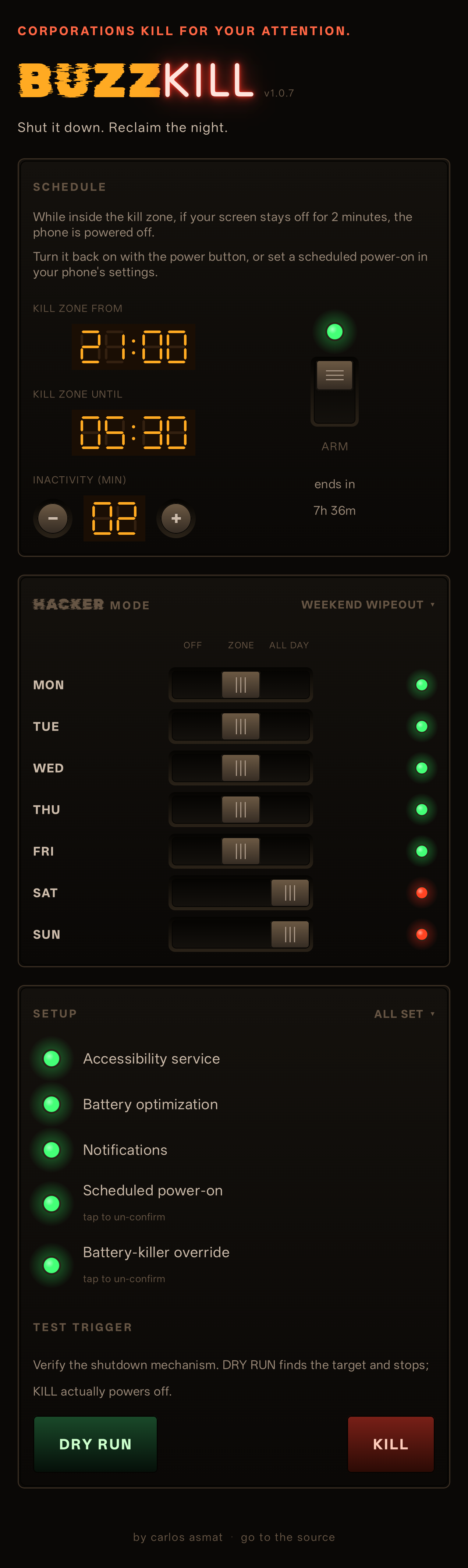
- Single-screen, hardware-panel-styled UI. - Configurable kill zone, inactivity timeout, and a first-shutdown confirmation dialog. - Test trigger with a 10-second countdown that runs the shutdown sequence in dry-run mode, so you can verify it works without losing your work. - OEM-aware: power-dialog matching strings live in a per-OEM file, currently tuned for OnePlus (OxygenOS).
Required permissions:
- Accessibility service (the mechanism used to power off). - Disable battery optimization (otherwise OxygenOS kills the foreground service). - Notification permission (Android 13+, for the persistent kill-zone notification).
Primary target device is the OnePlus 11 on OxygenOS. Adding support for other OEMs (Pixel, Samsung, Xiaomi) is a data-only change in app/src/main/kotlin/ca/asmat/buzzkill/oem/.
Source code, issue tracker, and contributing guide on GitLab.
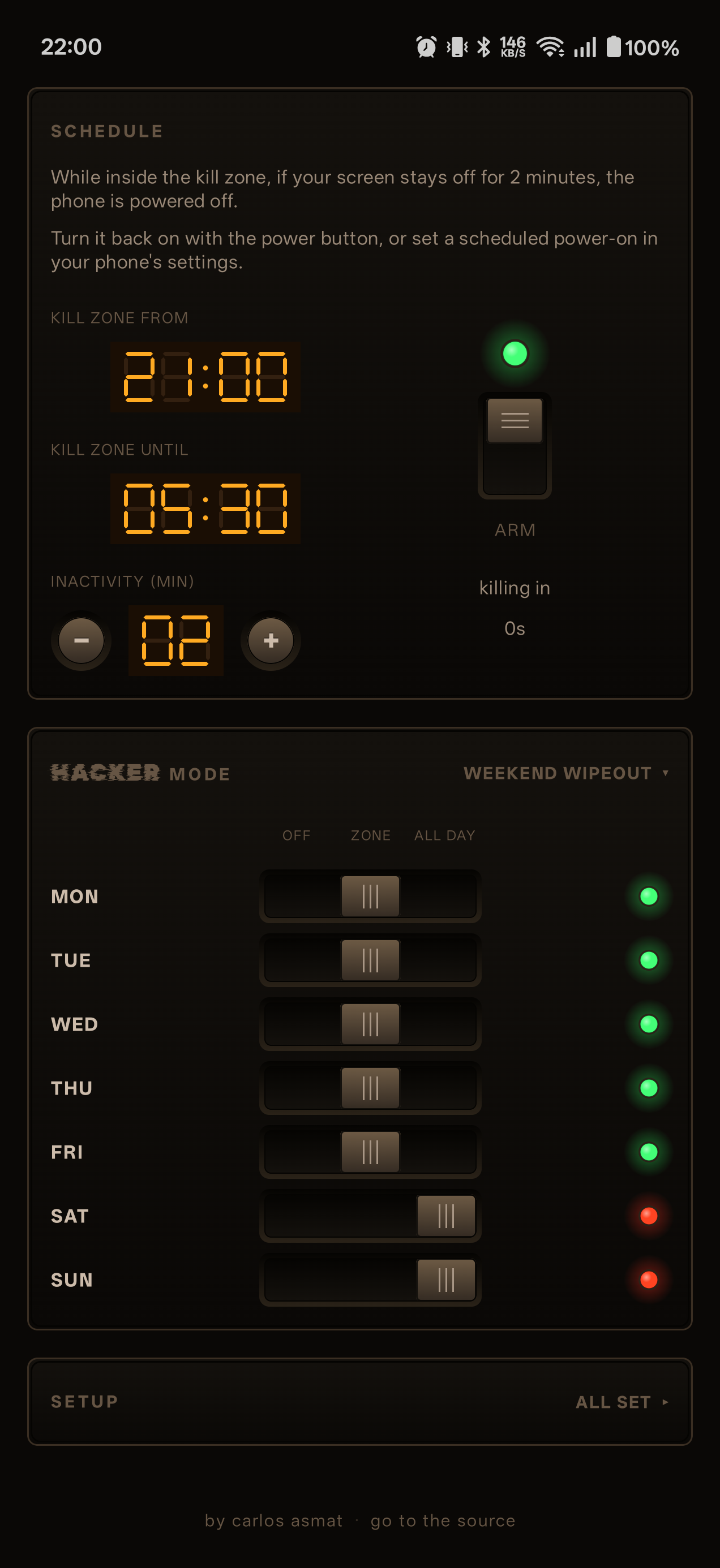
Fix per-day "advanced day" modes: a day set to Off or AllDay now actually takes effect. Previously the setting was ignored, so a weekend pause still powered the phone off inside the time window (e.g. Saturday 1am).
Recent approved comments · sorted by newest
View all comments